
My Finder Menu
My Finder Menu is the source of truth for what MenuSmith shows in Finder.
Arrange items
Drag an Action, group, or separator to a new position. Drag an Action into a group to create a submenu. The preview reflects the saved hierarchy.
Preview Finder contexts
The Finder Menu Preview at the bottom of the editor shows which Menu Actions are visible for a simulated Finder context. Choose Background, File, Files, Folder, Folders, or Files & folders without changing your saved menu.

File and Files are menus. When one is not active, its chip shows only File or Files and none of its options is checked. Choosing Any, PDF, or Image activates that context and shows the selection in the chip, such as File: Image or Files: PDFs.
Choose Choose File Type… when an Action depends on a specific extension. The single-selection chooser accepts an extension, file type name, MIME type, or UTI and shows the available metadata for each result.
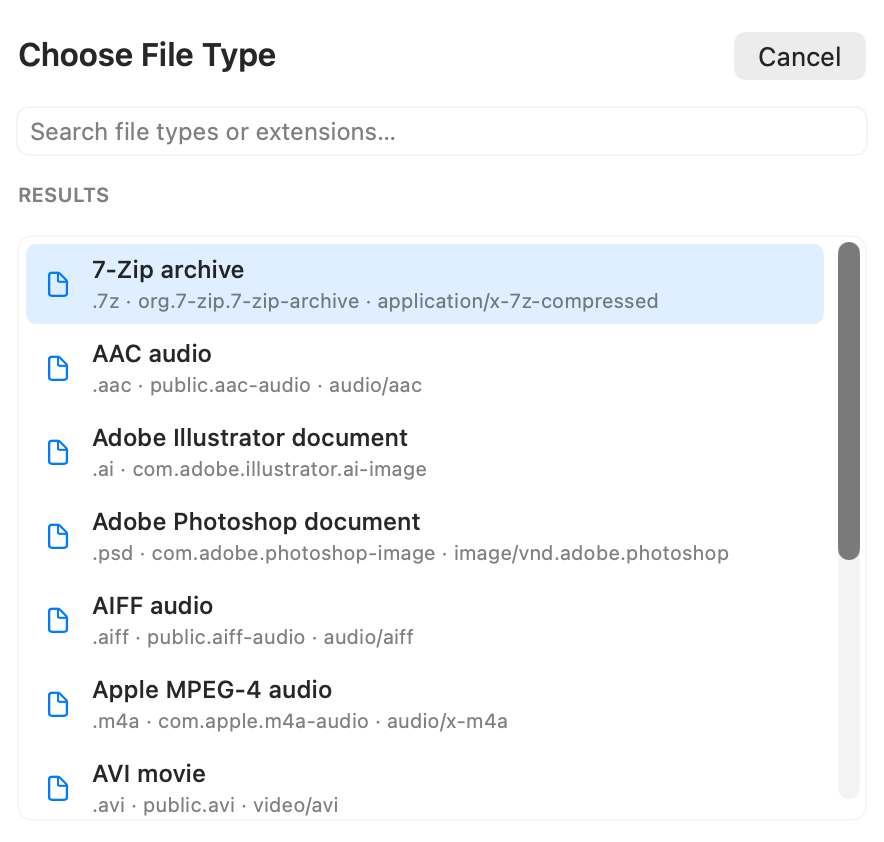
If an extension is not recognized, you can still use it as a custom extension. For example, entering .rata offers Use .rata as a custom extension.
The collapsed preview uses the same contexts and File/Files menus. Moving to another context discards the previous File or Files subtype; select a new subtype the next time you activate that context.
Edit an item
Select a Menu Action to open its Inspector. The Inspector contains presentation settings, Finder availability rules, and the options specific to that Action.
Deleting a Menu Action removes only that saved configuration. It does not delete the Action from Action Library or change files previously created by it.
Use multiple configurations
You may add the same Action more than once. For example, create separate Move to Folder entries for Projects and Archive, or separate Resize Image entries for different output sizes.