
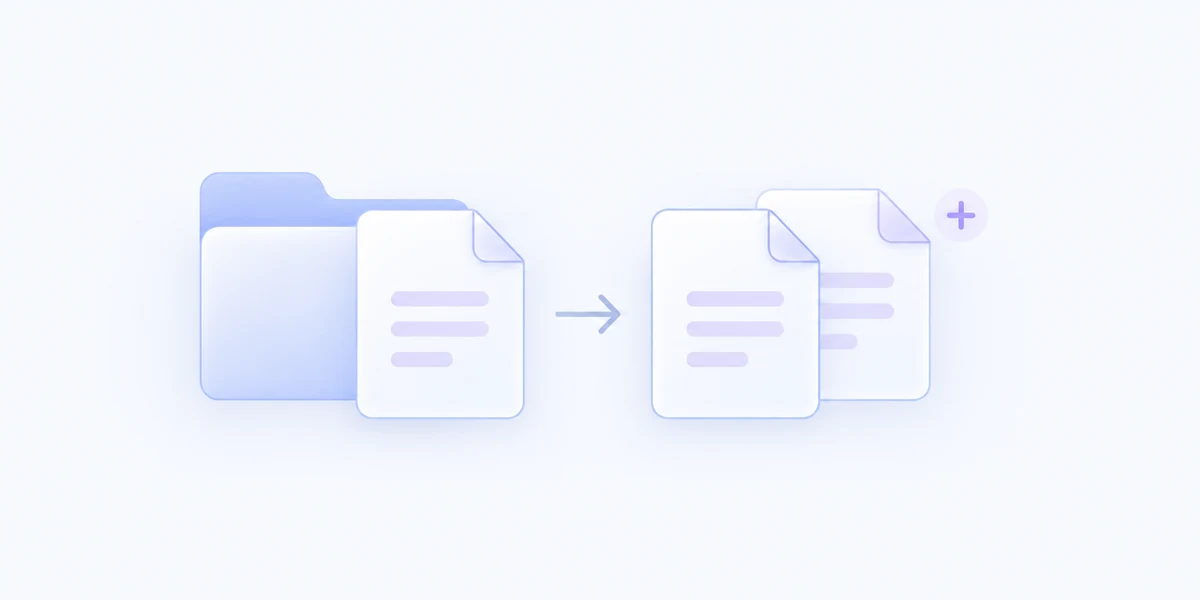
Create a copy of a stored file template in the current Finder folder.
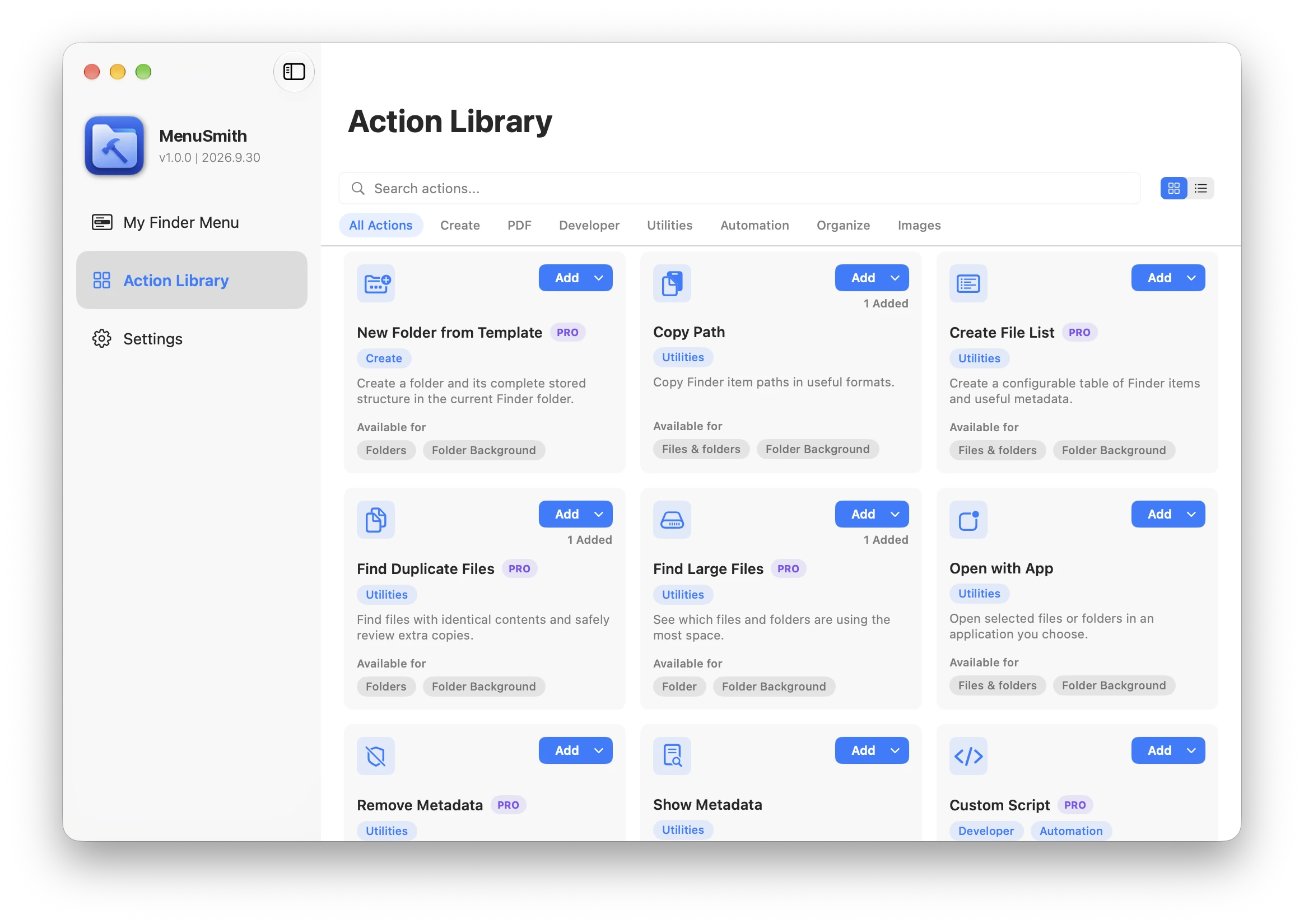
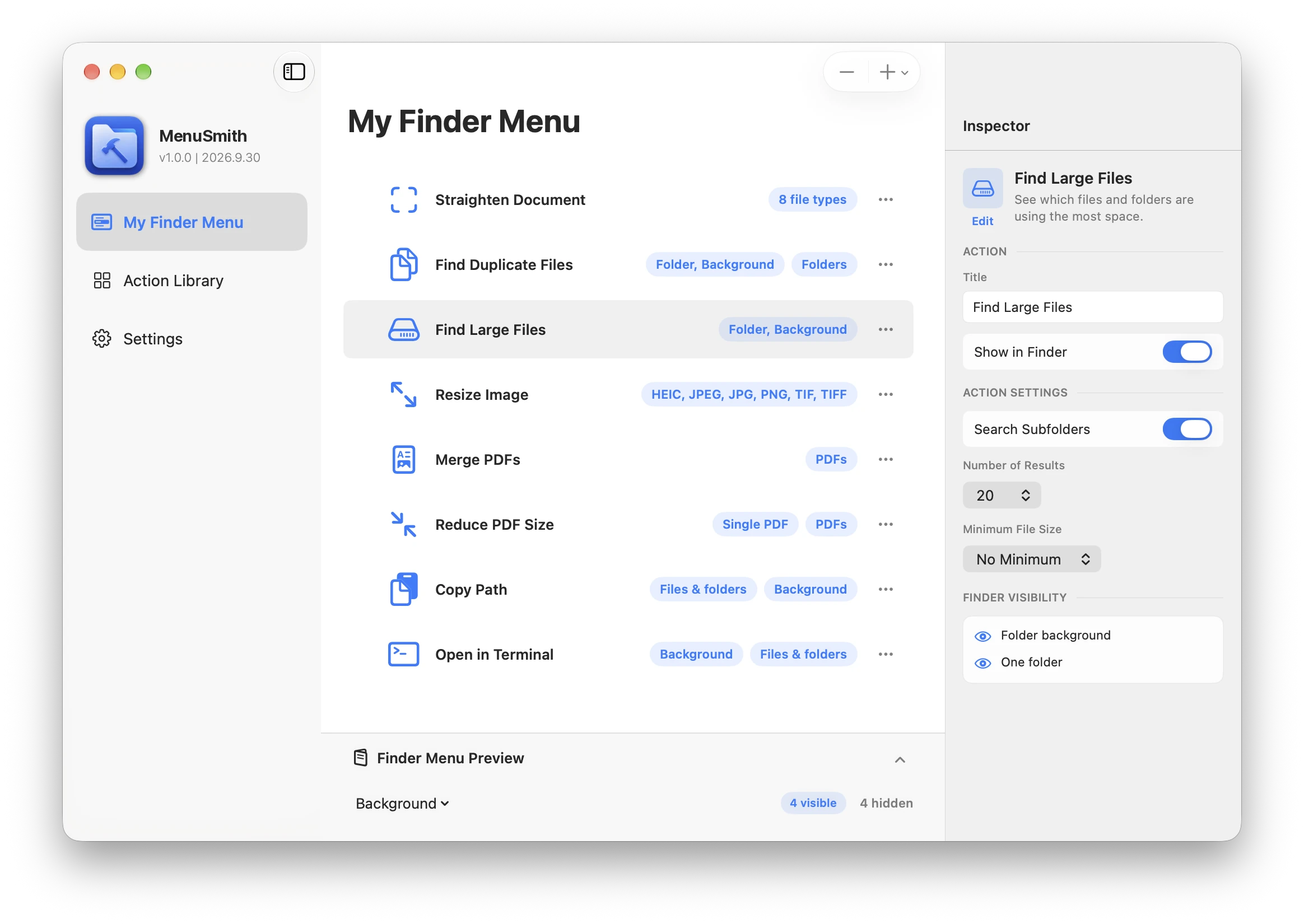
Add powerful Actions directly to Finder’s right-click menu, then arrange and configure them exactly the way you want.
MenuSmith combines useful file tools with a visual menu builder. Choose Actions from the Action Library, arrange them in My Finder Menu, and configure each one in the Inspector.
Explore all ActionsBrowse built-in Actions for PDFs, images, files, folders, and automation.
Arrange Actions into a menu that fits your workflow.
Fine-tune the settings for every Menu Action you add.
Built-in file Actions run locally on your Mac, keeping your files private.
Explore some of the things MenuSmith can do, from quick everyday tasks to powerful Pro workflows.
Create a copy of a stored file template in the current Finder folder.

See which files and folders are using the most space.

Inspect metadata in selected files without modifying them.
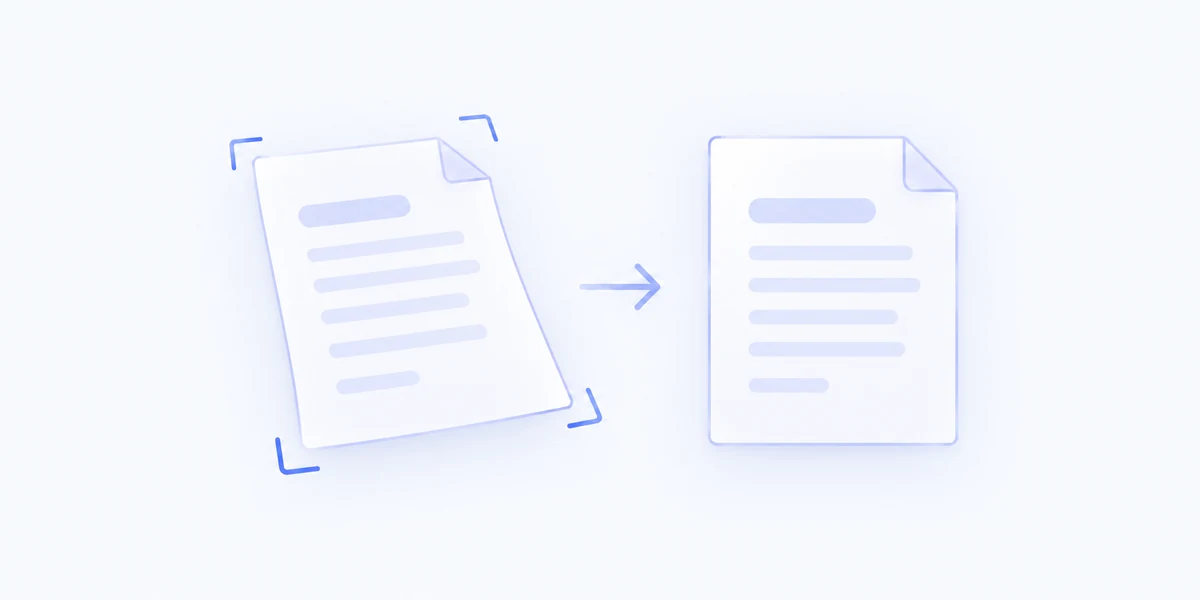
Straighten and flatten document photos with on-device AI.
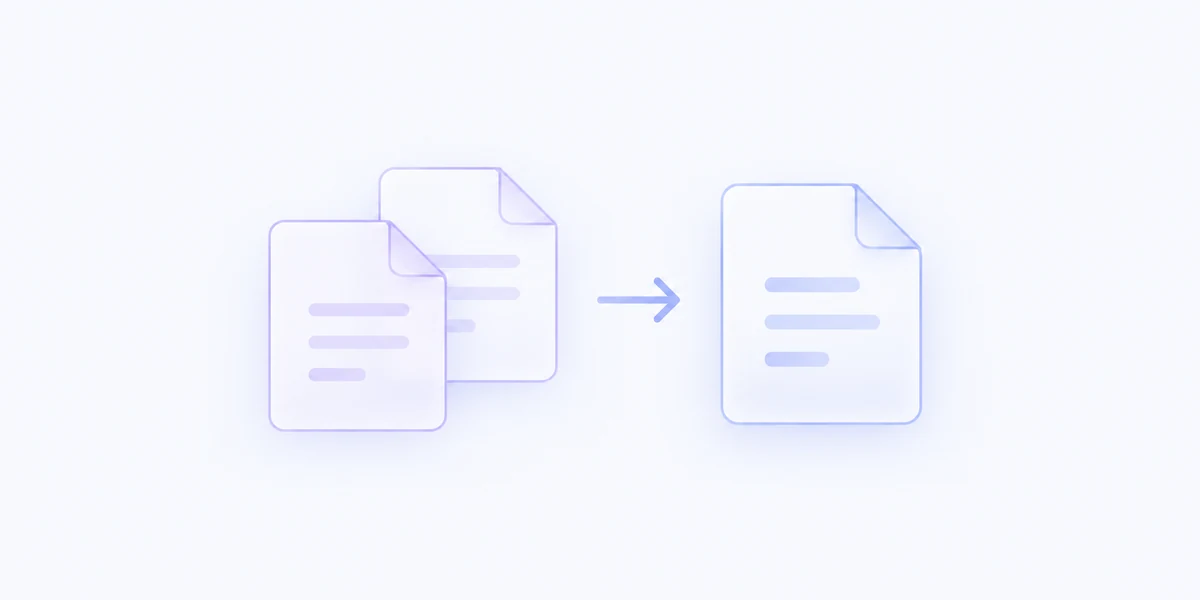
Combine selected PDF files into one document.
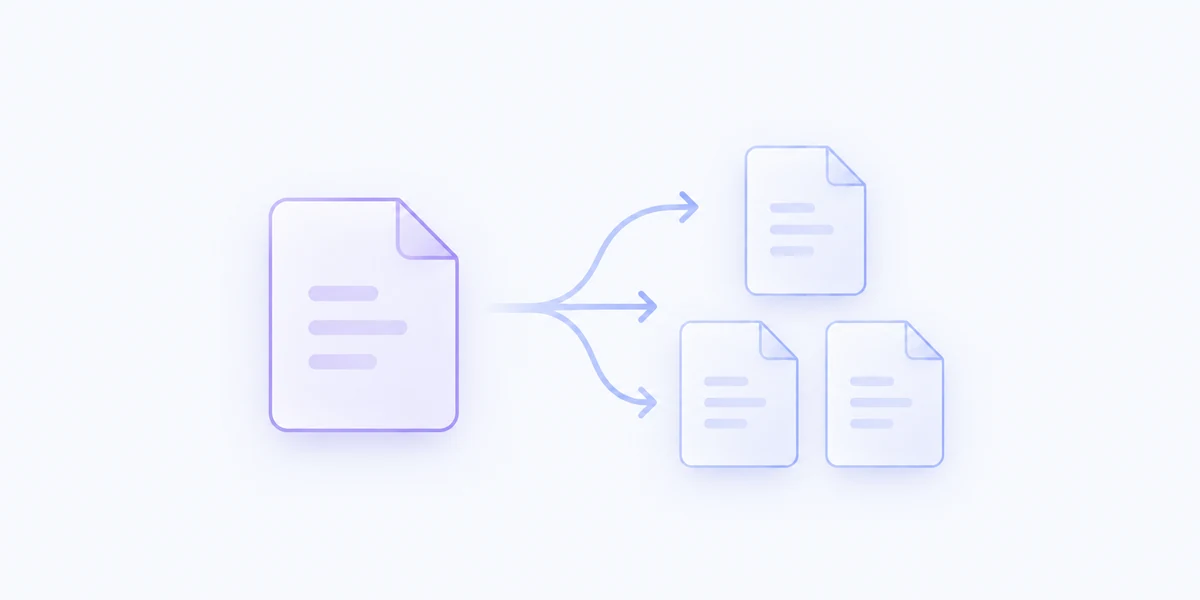
Split one PDF into multiple files with a visual page preview.

Automatically remove transparent or uniform borders from selected images.
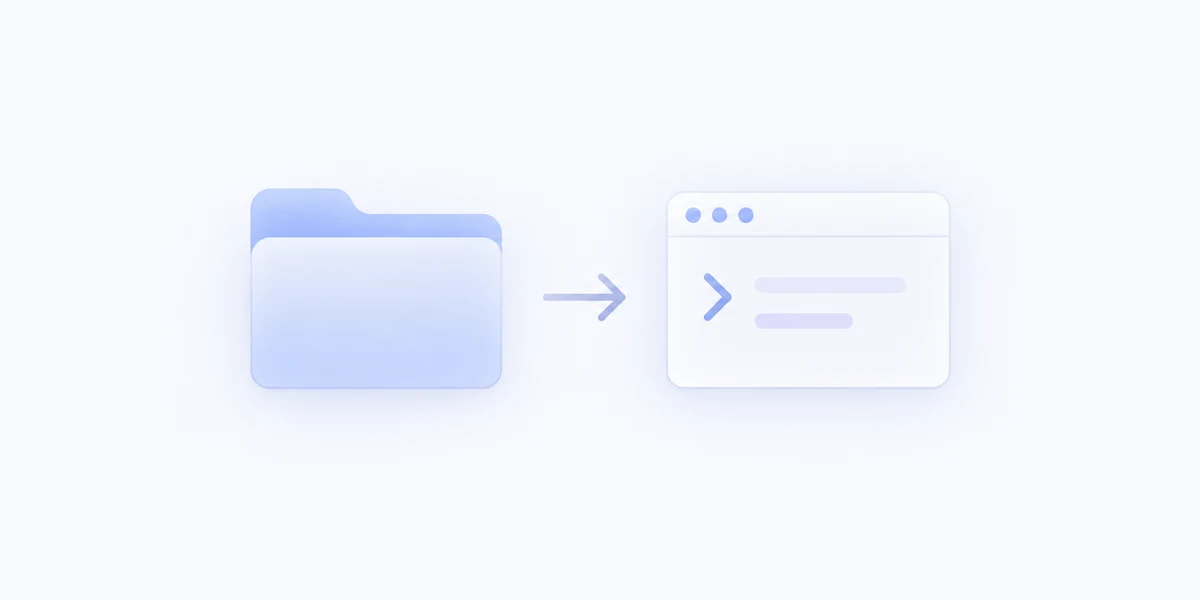
Open the current Finder folder in Terminal.

Run an explicit user-authored script with Finder context.
Build your menu in three simple steps.
Browse the Action Library and add the starter configuration that fits your task.
Drag Actions into place, build groups, add separators, and edit titles or icons.
Your configured Actions appear wherever their Finder context makes sense.
More than a utility collection: MenuSmith is a flexible menu builder for macOS.
Build a menu that stays focused on the Actions you actually use.
The Action Library gives you practical starter configurations. After adding one, its title, icon, parameters, and availability can be edited independently in the Inspector.
Browse the Action Library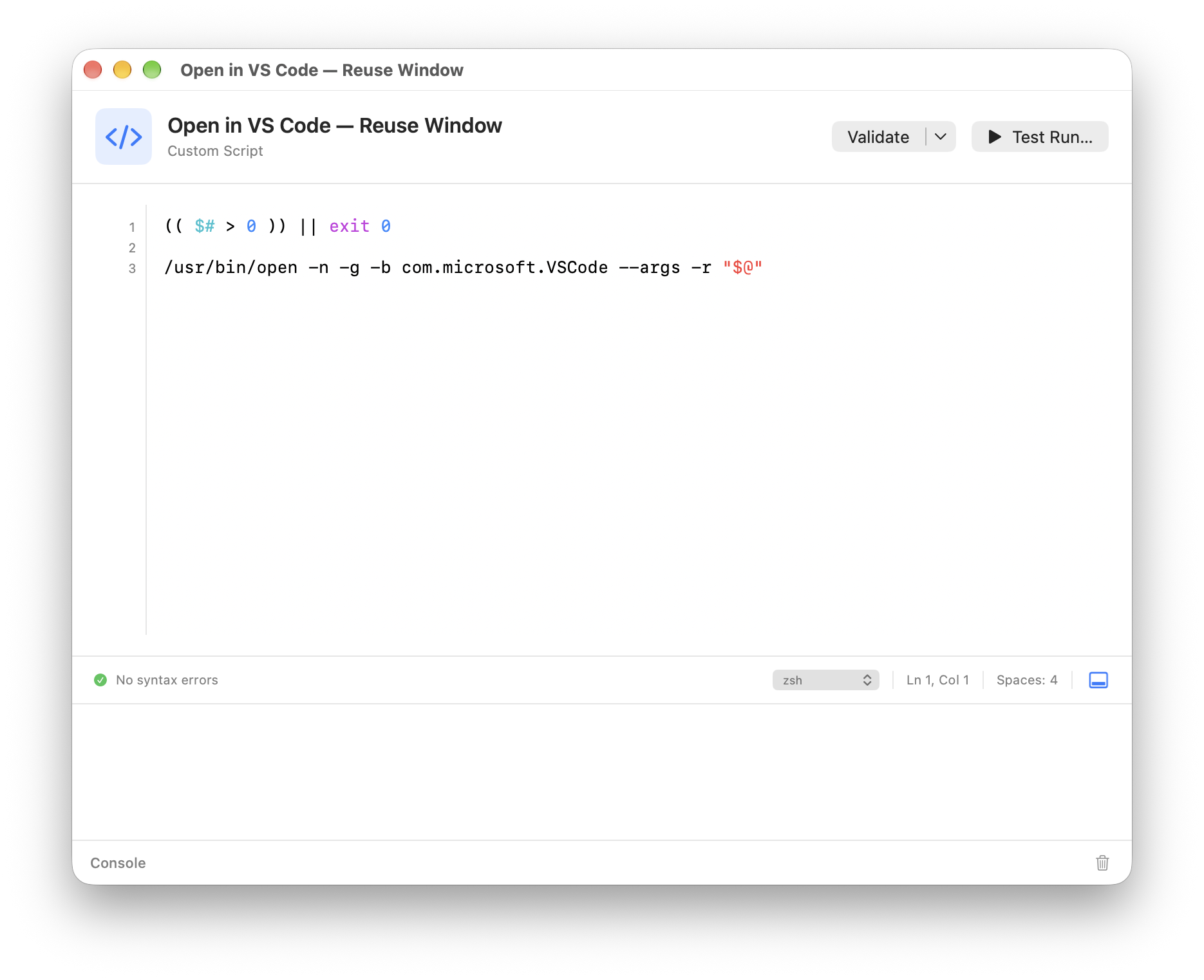
Turn your own zsh, AppleScript, or JXA source into an explicit Finder Action. Choose its context, selection limit, and execution mode.
Explore Custom ScriptGetting started, making the menu yours, and working with your files.
MenuSmith requires macOS 14 Sonoma or later. You can reopen setup from Help > Getting Started.
No. Once the Finder extension is enabled, your saved Actions work with the main app closed.
Open MenuSmith whenever you want to add Actions, change their settings, or rearrange your menu.
Yes. For example:
Each added Menu Action has its own title, icon, and settings, which you can change in the Inspector without affecting the others.
Yes. Create groups in My Finder Menu and drag Actions into them to make submenus. Use separators to divide related items.
In Settings > Finder Menu Behavior, choose whether your menu appears directly in Finder or inside a single MenuSmith submenu.
Select it in My Finder Menu and check:
Right-clicking a folder and right-clicking empty space inside it are different contexts. Use Finder Menu Preview to check what should appear.
If the whole menu is missing, check the extension through Help > Getting Started and review Finder Visibility in Settings > Advanced.
It depends on the Action:
Check an Action's settings to see how it handles its output.
MenuSmith's built-in Actions run locally on your Mac, including AI image resizing and document straightening.
Your files and settings stay on your Mac. MenuSmith does not collect personal data. No account is required.
No. Built-in Actions are configured with controls in the Inspector.
If you want to automate something of your own, Custom Script in Pro supports zsh, AppleScript, and JavaScript for Automation.
Its editor includes a Script Gallery with examples, syntax checking, and Test Run with files or folders you select.
Yes. Settings > Backups offers local backups and restore, including optional Automatic Safety Backups.
To move your setup:
Menu backups save your setup, not the personal files your Actions work on.
Free gives you access to a variety of useful Actions for everyday Finder tasks, plus full menu customization, import and export, and local backup and restore.
You can upgrade to Pro to access Pro Actions. Each Action is marked Free or Pro in Action Library. On the website, Pro Actions display a Pro badge.
Ask about MenuSmith, report an issue, or share the Finder Action you wish existed.