Use the language that fits
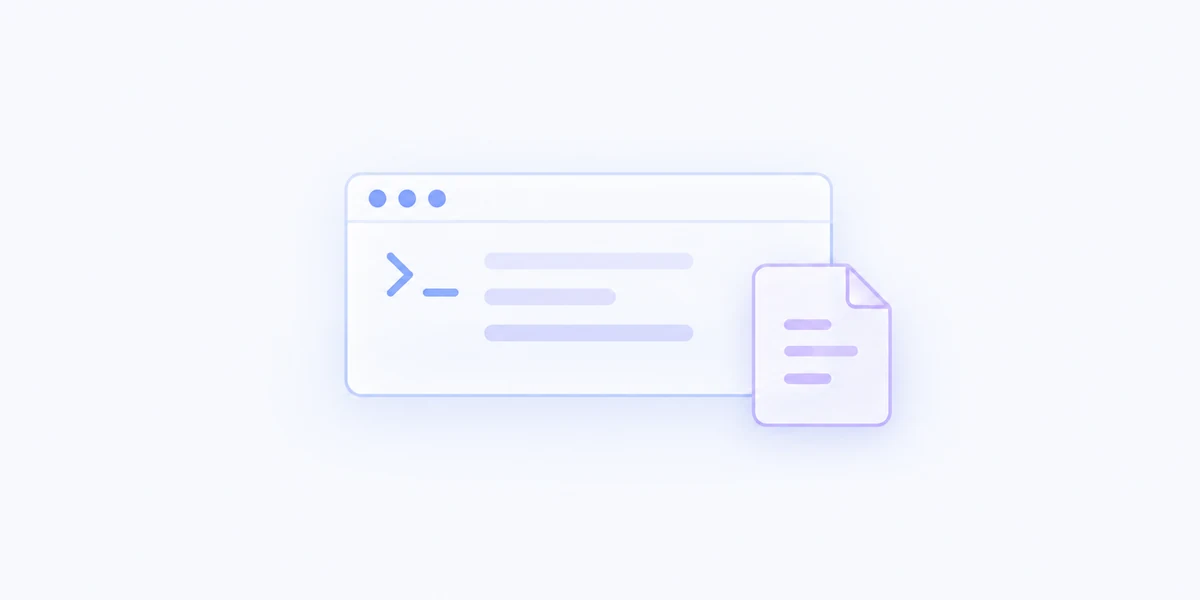
Write a zsh shell script, AppleScript, or JavaScript for Automation. Edit it in MenuSmith and check its syntax before running it.
Turn your own shell scripts, AppleScripts, or JavaScript automation into Finder commands that run with the files and folders you choose.
Included with MenuSmith Pro · macOS 14 or later
Your workflow, in the menu
When a task is specific to your tools or your team, a custom script can connect it to the Finder context you already have.
Write a zsh shell script, AppleScript, or JavaScript for Automation. Edit it in MenuSmith and check its syntax before running it.
Choose the file and folder contexts where the Action appears. Limit file types when a script is meant for a particular kind of input.
Use Test Run in the script editor to choose test items and inspect the output. The script runs once with the selected Finder context; your code decides how to handle the items.
Begin with an editable example or browse the Script Gallery for a starting point. Keep a dedicated Action for each workflow, then adjust its code and inputs. Only run scripts you understand and trust.
Build custom menu commands around the scripts you trust.